Where I stand on AI in the edit
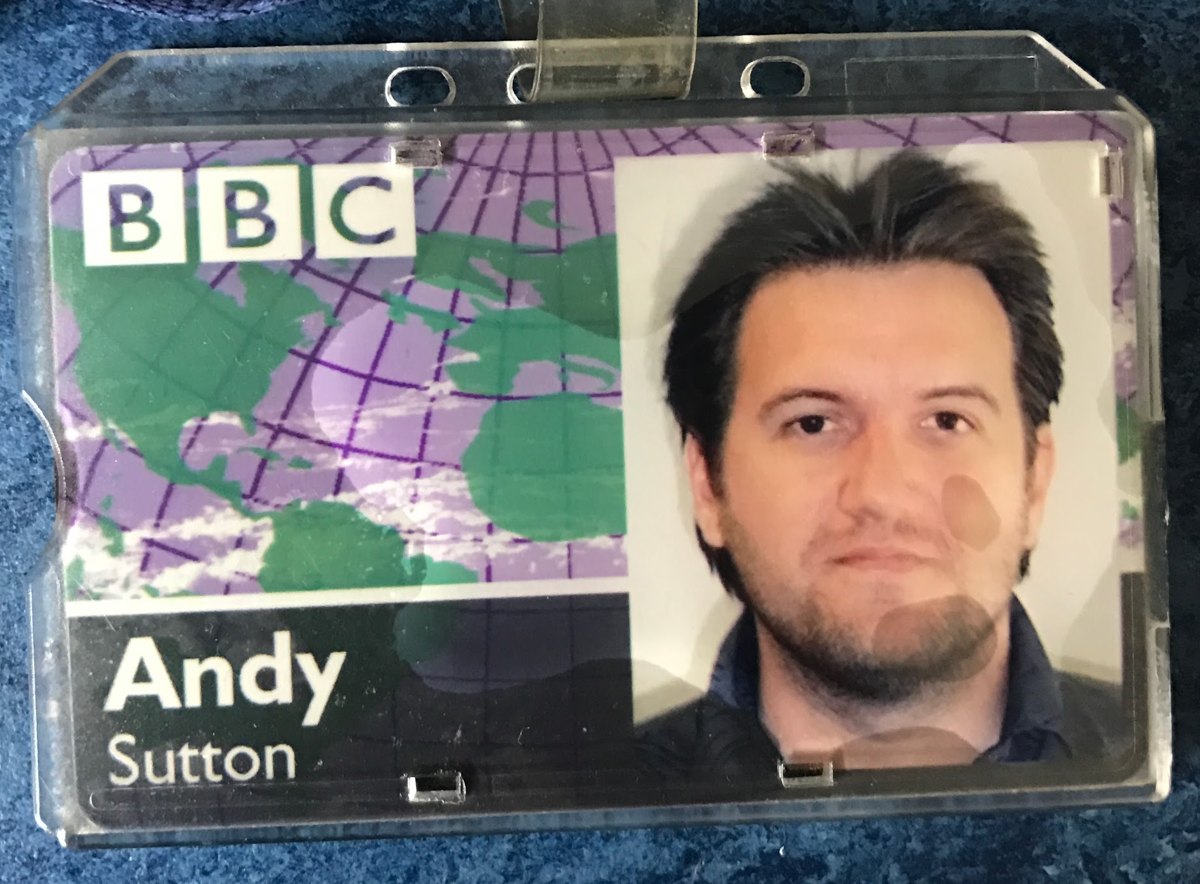
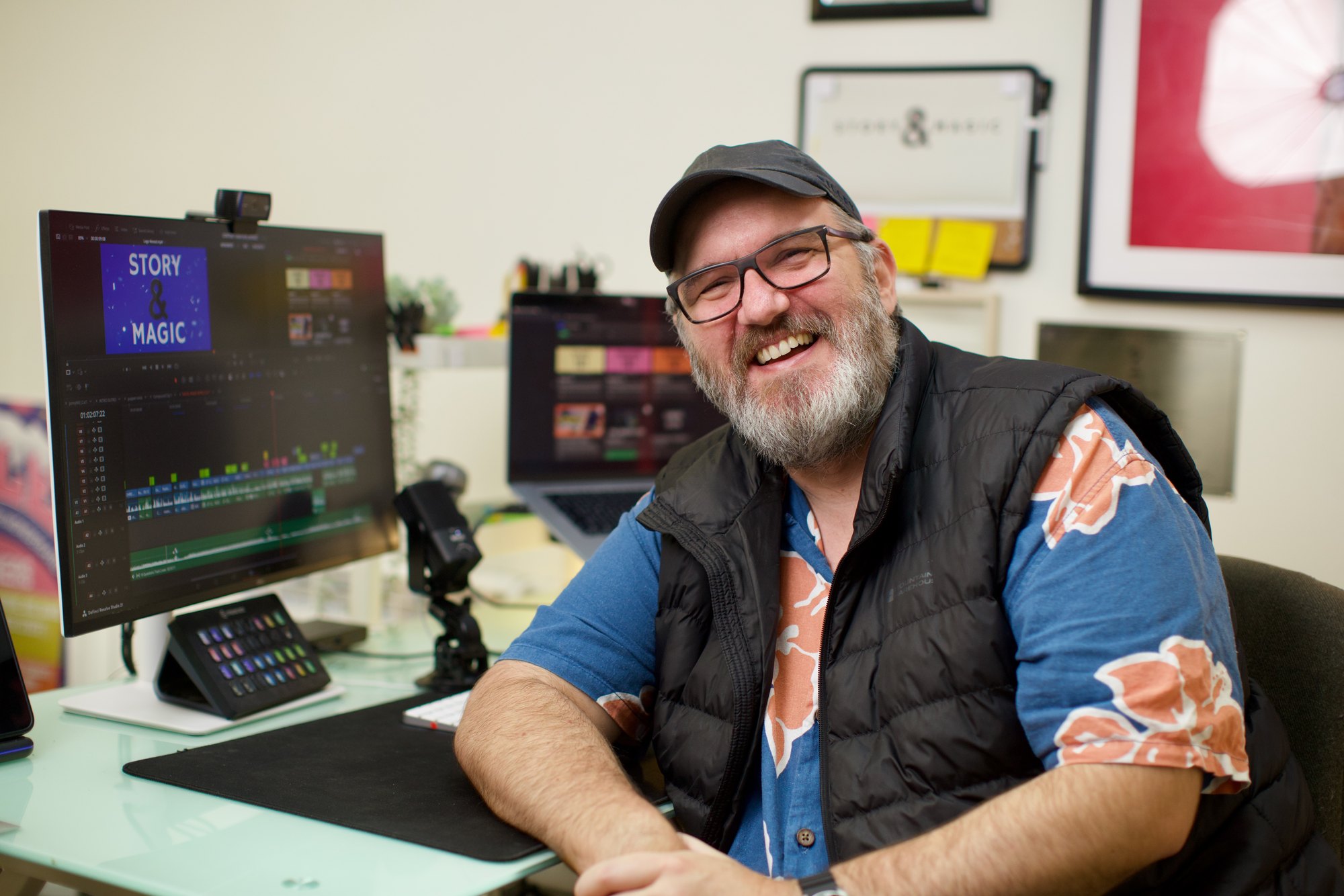
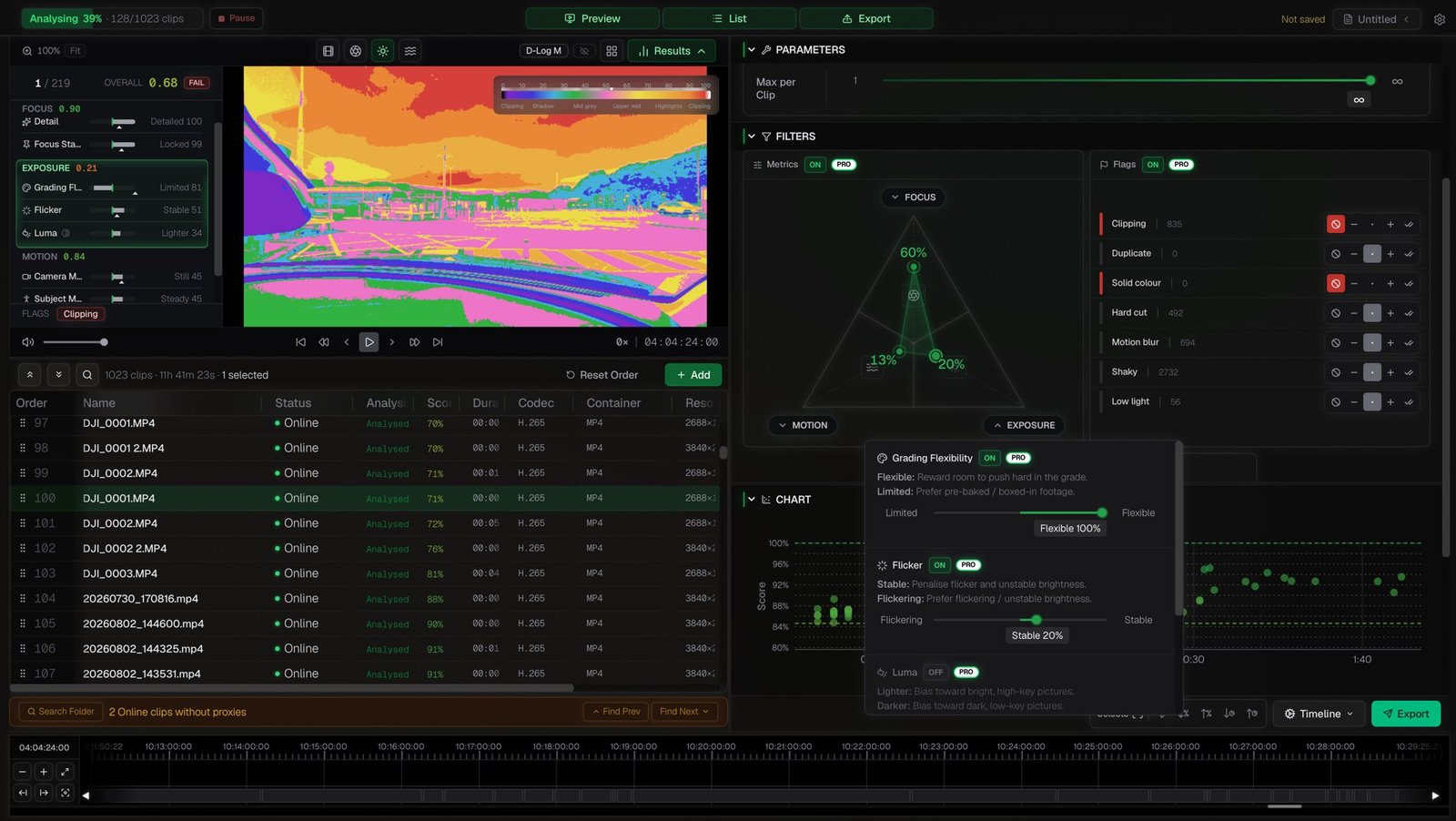
A while back, on a job for the BBC, I was asked to test Quickture and report back to the production team. It's one of the first tools built to do the heavy lifting in an edit: transcribe, find the moments, rough out an assembly. I went in sceptical and came out with a clear view.
AI is brilliant at the bit of editing nobody gets into the industry for. Logging. Syncing. Pulling selects. The hours of wading before you get to touch the story. It is not, and I don't think it will be any time soon, the person who knows that the pause before she answers is the whole scene. That's still us.
So when I learnt you can now plug a large language model (an LLM, the AI behind Claude, ChatGPT, Gemini and the like) straight into the inner workings of DaVinci Resolve, I wanted it. Not to cut for me. To clear the decks so I can.
The wall
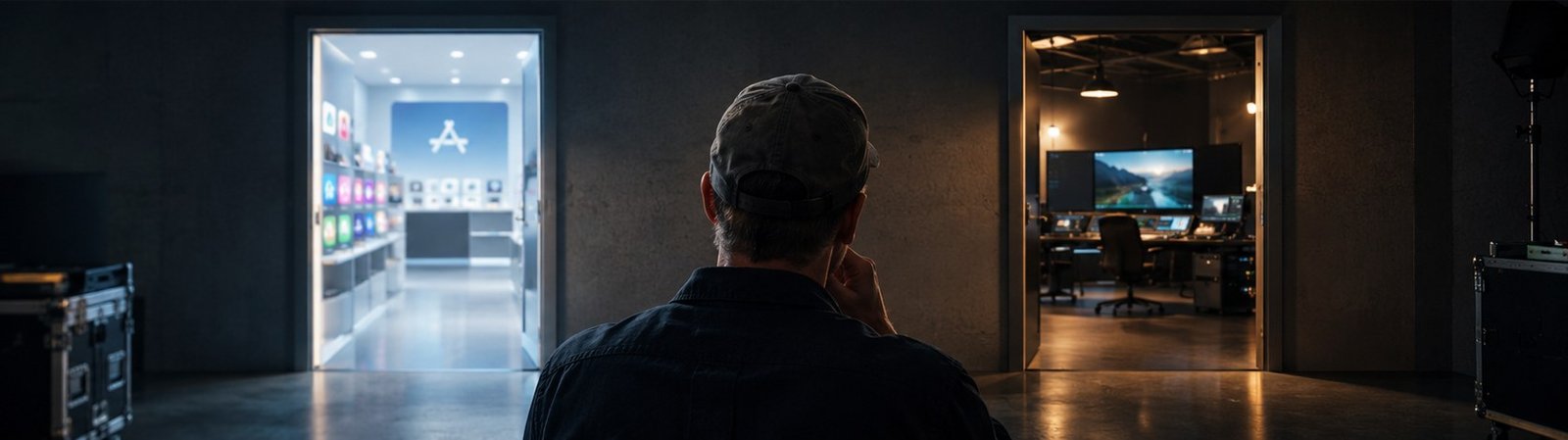
Here's the fun fact nobody tells you. There are three versions of DaVinci Resolve. The free one. Studio, the paid version you buy direct from Blackmagic Design. And Studio from the Mac App Store, also paid, but neutered by Apple's rules. Every App Store app has to run inside Apple's sandbox, a walled-off space that limits what the software can reach on your Mac: hardware drivers, other people's plugins, helper programs running alongside it. Great for keeping a dodgy app in its box. Not so great for a professional edit suite that needs to talk to everything.
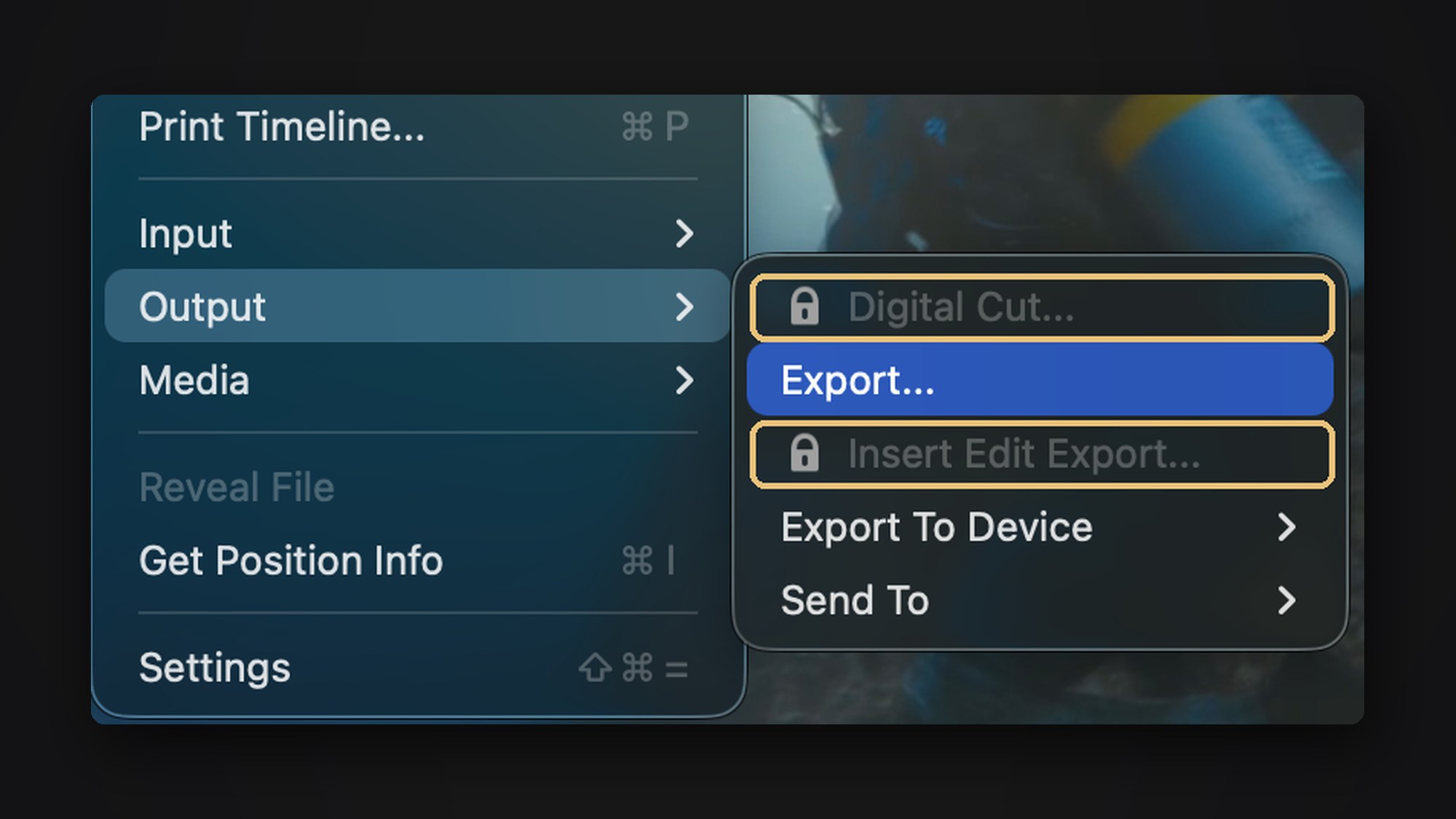
If you buy Studio direct from Blackmagic Design, connecting an AI assistant is a friendly little item in the File menu: File > Setup AI Assistants. Click it, pick your assistant, done. Blackmagic ships its own connector inside the app.
I'd bought mine from the Mac App Store two years ago, so there's no chance of a refund. (I tell that sorry tale in I bought Resolve from the wrong shop.) Same name, same icon. And that menu item simply isn't there. The connector isn't in the app at all. The plug had been plastered over.
The kicker is the App Store version is the more expensive one. It also doesn't support some external control panels and may not work with every third-party OpenFX or VST plugin. Apple's own listing says so. So you pay more and get less.
My advice, if you haven't bought yet: buy direct from Blackmagic. If you already have the App Store version like me, read on.
So I asked the thing I was trying to plug in
There's a certain irony in it. The tool I wanted inside Resolve was Claude, so I asked Claude to find me a way in.
It came back with two routes. Blackmagic's own connector, the one that's been plastered over in my version. And a community-built one, an open source project by Samuel Gursky called davinci-resolve-mcp, which talks to Resolve through its scripting interface. That one should work on the App Store build. Or so I hoped.
It involves a little bit of pasting into Terminal. If you've never opened Terminal, don't panic. You're copying lines and pressing Enter. Here's the exact path I took.
Follow along: connecting Claude to Resolve Studio (App Store version)
You'll need: Resolve Studio (not the free version), a Mac, and the Claude desktop app.
Step 1: Check which version you've actually got
Open Terminal (Cmd+Space, type Terminal, Enter) and paste this:
find /Applications -name ResolveMCP 2>/dev/nullIf it prints a path, you have Blackmagic's connector. Close Terminal and use File > Setup AI Assistants in Resolve instead. Lucky you.
If nothing comes back, you're where I was. Carry on.

Step 2: Let Resolve talk to the outside world
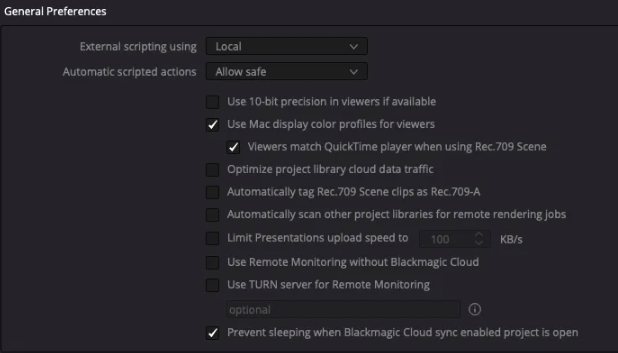
In Resolve, go to DaVinci Resolve > Preferences > General and set External scripting using to Local.
Then quit Resolve and reopen it. The setting doesn't take until you do. Leave it open from here on.
Step 3: Check your Python and Node
Back in Terminal:
python3 --version; node --versionThe connector needs Python 3.10 or later, and Node. My Mac came back with Python 3.9.6 (the one Apple ships, too old) and no Node at all. If that's you too, go to Step 4. If you've got both, skip to Step 5.
Python 3.9.6
zsh: command not found: node
Step 4: Install Homebrew, then Python and Node
Homebrew is a free installer for this kind of thing. Check if you have it:
brew --versionIf you get "command not found", install it:
/bin/bash -c "$(curl -fsSL https://raw.githubusercontent.com/Homebrew/install/HEAD/install.sh)"It'll ask for your Mac password. The cursor won't move while you type it. That's normal. When it finishes, it prints two lines under "Next steps" starting with echo and eval. Copy and run both. Easy to miss, and nothing works if you skip them.
Then install Python and Node:
brew install python@3.12 nodeStep 5: Run the connector setup
This is the line that does the work. It points the setup at the new Python rather than the old one Apple left behind:
DAVINCI_RESOLVE_MCP_PYTHON=/opt/homebrew/bin/python3.12 npx davinci-resolve-mcp setupIt'll find Resolve and ask which app you want to connect. Choose 2, Claude Desktop. (Option 3 only sets up Claude Code for the folder you happen to be in, which isn't what you want.)
I'm not going to lie: watching the Terminal find Resolve, line after line, I felt somewhere between Neo and Matthew Broderick in WarGames.
Step 6: Properly restart Claude
Quit the Claude desktop app with Cmd+Q. Closing the window isn't enough, it keeps running in the background and won't see the new connector. Reopen it.
Step 7: Test it gently
With a project open in Resolve, ask Claude something that only reads, doesn't change:
List the timelines in this project.
If it answers with your timelines, you're in.
Before you let it touch anything, duplicate your timeline and work on the copy. Same as you would with an assistant on their first day.
Tada
And then the fun bit. I've got hours of footage from Jura. Somewhere in it, I know I talk about the moment Story & Magic started to take shape. But where?
A great first task. I asked Claude to find anything to do with my work, or with how being on Jura was inspiring me to build something new.
It whirred. It clicked. It was clearly doing something. And then, as if by magic, one clip appeared. Then, in quick-fire succession, a whole timeline.
On review, a very good first step: 22 minutes of footage that answered my request. Plus two more timelines, one with everything in it and one with every moment I speak. From there, I can start telling that story.
The end
This isn't really a story about AI. It's about solving a problem I thought I'd have to pay my way out of, again. With AI, I found a way to get what I wanted, and it worked.
This is the shape of it now. The machine logs, syncs and pulls. You find the story. I'd rather spend my hours on the second one, and I suspect you would too. Want a marker at the start of every music track? Just ask. What a time to be alive. (Until the AI takes over.)
And if you're about to buy Resolve Studio: buy it direct. You'll save money and you won't need this blog post.
Read more: Voyager: Resolve MCP setup · davinci-resolve-mcp install guide · davinci-resolve-mcp issue #299